Photo and Video Gallery: How to Collect Every Moment
Discover how to organize and share a photo and video gallery that preserves every special moment, from trips to family milestones.
You've just come home from an event with a phone full of your own photos, three group chats full of compressed screenshots, and no reliable way to find the moments you didn't capture. The bride's cousin has the best dance-floor video. A colleague photographed the keynote reaction everyone missed. Your parents have pictures sitting on a phone they may not remember to share.
A well-run photo and video gallery turns that scattered collection into one memory hub. Guests scan, upload, and see the event build in real time, while the host keeps control over privacy, quality, and what gets published afterward.
Table of Contents
- Why Every Event Needs a Shared Photo and Video Gallery
- Planning Your Gallery Before Guests Arrive
- Creating Your Branded Upload Page and Sharing Access
- Protecting Original Quality and Managing File Exports
- Proven Ways to Maximize Guest Contributions Live
- Curating Publishing and Sharing Your Final Gallery
Why Every Event Needs a Shared Photo and Video Gallery
The problem usually appears after the event, not during it. A wedding group chat becomes a stream of congratulations, questions, stickers, and media. An AirDrop works for a few people standing together, but it doesn't help the guest who leaves early or the relative using a different phone. Files end up spread across devices, messaging apps, social platforms, and personal cloud accounts.
A shared gallery gives everyone one destination from the beginning. At a wedding, guests can contribute the quiet table moments, the behind-the-scenes preparations, and the photographs taken while the professional photographer is working elsewhere. At a corporate offsite, the same space can collect team activities, speaker clips, and informal moments for an internal recap. A birthday, graduation, festival, or sports weekend benefits for the same reason: the event creates more viewpoints than one person can capture.
The scale of modern image creation makes this operational issue hard to ignore. Industry summaries estimate that people will take about 2.1 trillion photos in 2025, compared with roughly 1.9 trillion in 2024, or around 5.3 billion photos per day. The figures are compiled in the photo industry statistics overview. Smartphones account for an estimated 94% of photos taken in 2024, so most guests already carry the camera and upload device they need.
Practical rule: Treat the gallery as part of the event experience, not as an inbox you'll organize later.
Guests also expect access without a technical project. Recent guidance on event photo sharing workflows describes QR sharing and no-app uploads as increasingly familiar, while pointing to the less glamorous details that decide participation, including backup URLs, visible printing, and placement where people naturally pause.
A useful gallery does three jobs at once. It captures media from many contributors, gives guests a simple way to view what has arrived, and preserves a controlled archive for the host. The tool matters, but the difference comes from removing friction before anyone asks, “Where should I send this?”
Planning Your Gallery Before Guests Arrive
A gallery works best when its rules are decided before the first guest scans. Start by choosing its job. A private wedding keepsake needs different access controls from a public festival gallery or a branded corporate content collection. Decide whether guests should only upload, view approved media, or do both.
Set the boundaries first
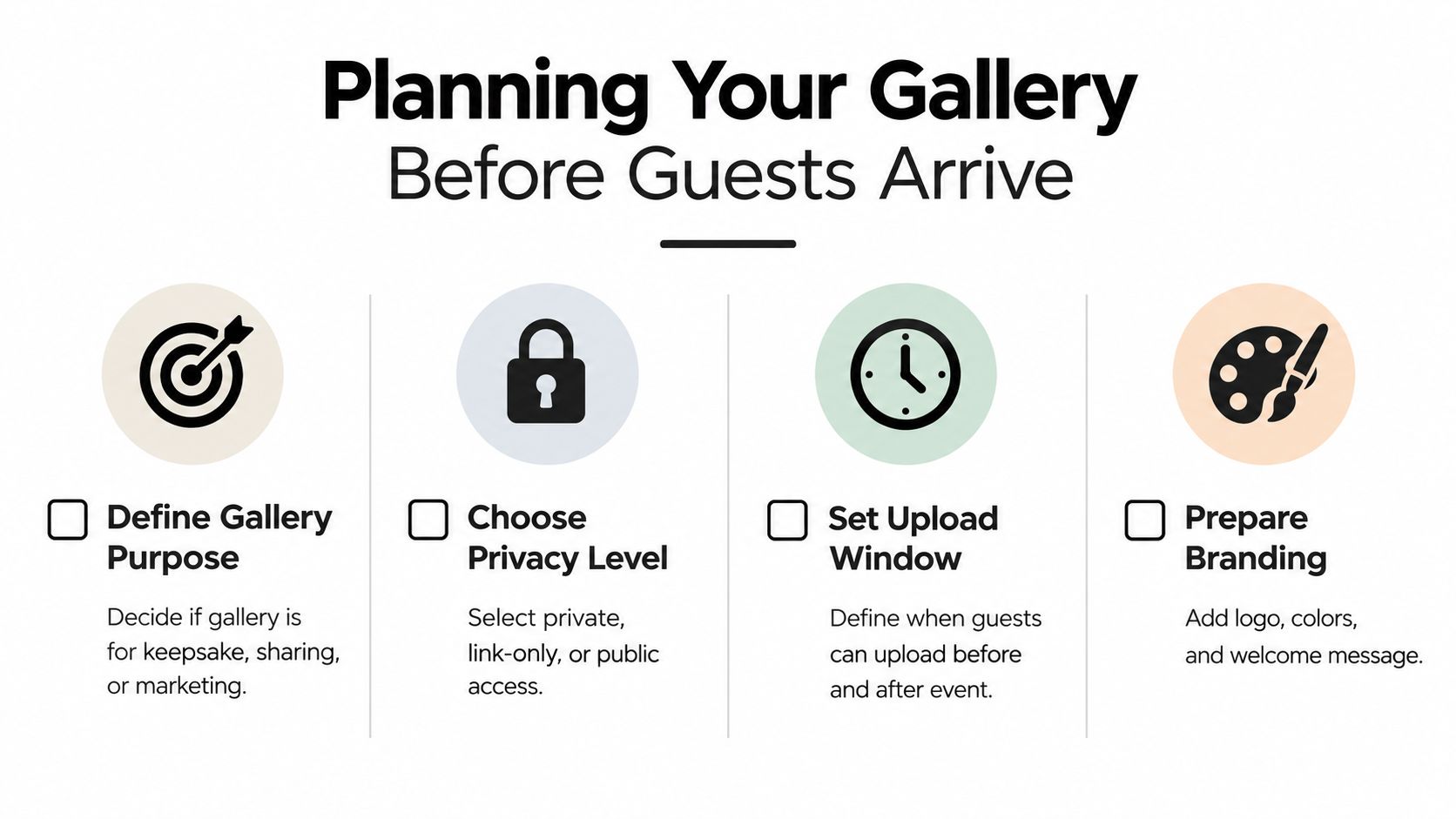
Use these decisions as your pre-event checklist:
- Define the purpose: Decide whether the collection is primarily a keepsake, a live sharing space, or a source of approved content for marketing and recaps.
- Choose privacy carefully: Private access suits family milestones. Link-only access may work for an internal team. Public access needs a clear moderation process.
- Set the upload window: If you want preparation photos, open uploads before the event. If the gallery is only for live contributions, keep the window focused on the event and close it when curation begins.
- Prepare the presentation: Add the event name, colors, logo, and a welcome message that tells guests exactly what to do.
A short welcome message prevents hesitation. “Scan to add your photos and videos. No app or account required. Please upload your favorite moments from today” is clearer than a decorative sign with no instruction. For older relatives, coworkers moving between sessions, and guests who don't want another account, the shortest path is usually the strongest one.
Think about volume in practical terms rather than guessing a file count. A wedding may produce a burst during the ceremony and reception. A conference may receive uploads during breaks. A sports weekend can generate separate waves from different matches. Your gallery should be ready for many contributors uploading from their phones at once, and you should know who will review submissions if the collection is public.
For additional guidance on reducing friction in phone-based submissions, see this guide to mobile photo uploads. Test the process on both a recent phone and an older device, check the upload page on cellular data, and make sure the link is easy to read aloud if someone needs help.
Creating Your Branded Upload Page and Sharing Access
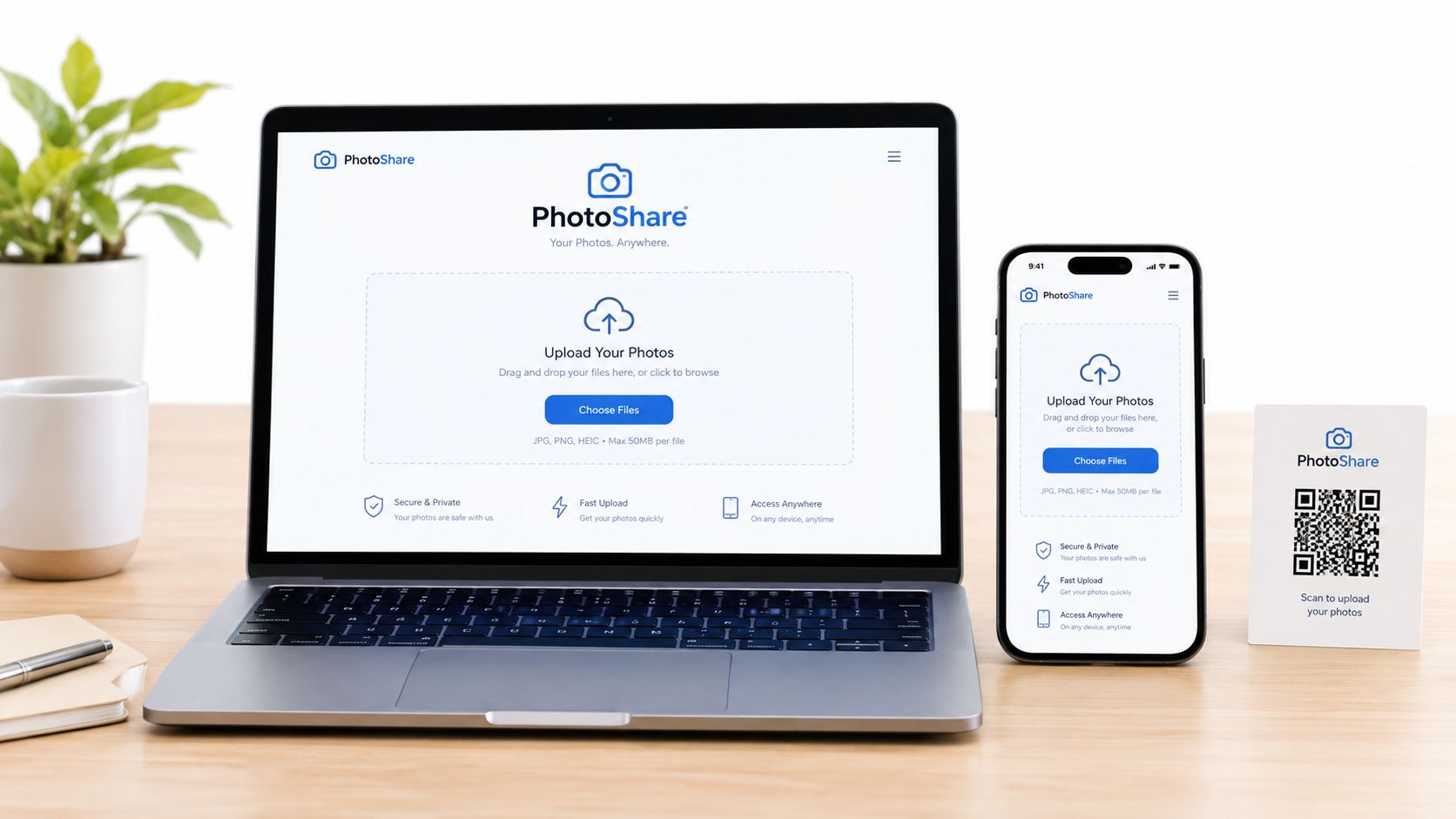
The upload page is where participation either starts smoothly or stops. Guests shouldn't have to search an app store, create a profile, confirm an email, and remember a password while a toast is being raised. A browser-based page with a direct upload button gets them to the useful action immediately.
Build one route, then repeat it visibly
Create a branded page with the event name, logo, colors, and a friendly instruction. Generate one direct link and its matching QR code. Don't make guests choose between several destinations unless each one has a distinct purpose.
Then place that route in the moments when people naturally have a free hand:
- Welcome signage: Put the code near the entrance, registration desk, or ceremony welcome table.
- Seated tables: Use small table cards where guests can scan without blocking the main program.
- Queues and pauses: Registration lines, coffee stations, coat checks, and buffet areas create useful scanning opportunities.
- Screens and slides: Display the code during breaks at conferences, offsites, and performances.
- Printed backup access: Add a short URL below the code for guests whose camera struggles with scanning.
Contrast matters. Use a dark code on a light background, leave clear space around it, and avoid placing it over a photograph or patterned design. A QR code hidden in a crowded poster is technically available but operationally invisible. Test every printed version from the distance at which guests will see it.
Remove the awkward questions
Your sign should answer the questions guests tend to ask:
- What is this for?
- Do I need an app?
- Do I need an account?
- Can I upload video?
- Who can see what I send?
A concise answer builds trust, especially for family events and workplace gatherings. If uploads are private or moderated, say so. If the gallery is public, explain that contributions may be reviewed before publication.
A live dashboard helps the host see whether the process is working. If uploads aren't arriving, move the sign, repeat the announcement, or offer the direct URL. The host should also be able to pause or close uploads, particularly when a corporate gallery needs a final cutoff or a public event requires moderation.
For weddings, I recommend assigning the announcement to the DJ, MC, planner, or a trusted member of the wedding party. One clear reminder after guests have settled is more effective than a small sign nobody notices. The same principle applies to conferences: place the instruction in the event briefing and repeat it at the first natural break.
Protecting Original Quality and Managing File Exports
A gallery can be easy to use and still fail as an archive if it stores only reduced copies. Quality decisions made during upload may be difficult or impossible to reverse, so hosts should choose preservation before the event rather than discover the problem when ordering prints.
Google Photos provides a useful benchmark. Its Original quality setting stores photos and videos at the resolution captured, while High quality or Storage Saver workflows can compress or downscale them. Independent guidance on Google Photos quality settings recommends selecting Original before an important event when preserving the captured resolution matters.
Upload directly, not through a chat relay
Messaging apps are convenient for conversation, but they're poor intermediaries for an archive. Independent testing of WhatsApp-style delivery found examples where photos fell to roughly 30% to 40% of the original file size and around 1600 by 1200 pixels from a 4000 by 3000 source. Other analysis has reported standard sends retaining only about 3% to 17% of the original bytes, as shown in this WhatsApp photo quality analysis.
The practical conclusion is straightforward. Ask guests to upload from the phone's camera roll directly to the gallery. Don't ask them to send the file to a group chat first and expect the gallery to recover the original later.
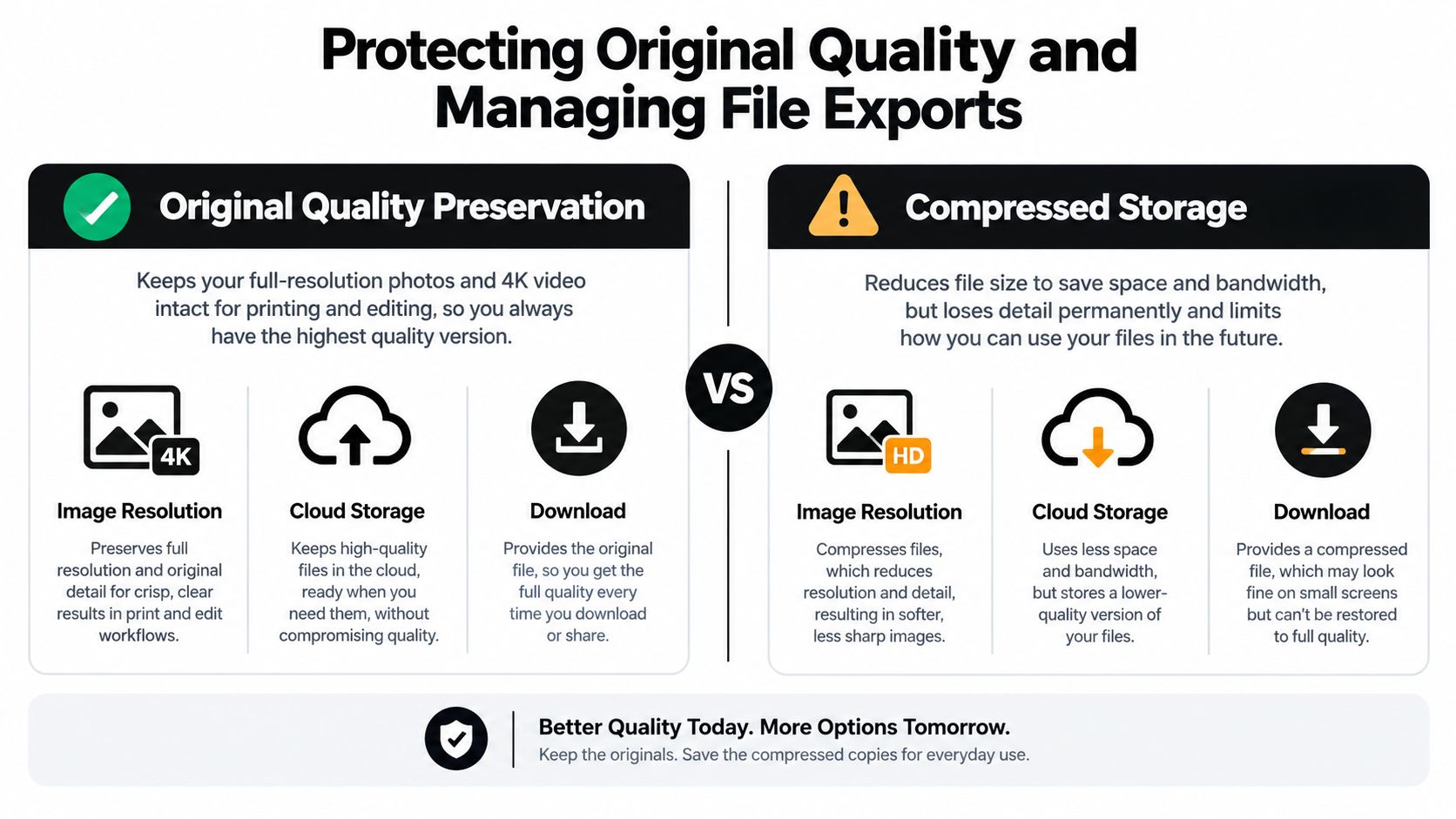
| Method | Typical result | Best for |
|---|---|---|
| Chat app relay | Convenient sharing, but compression or resizing may remove detail | Quick conversation and casual viewing |
| Direct gallery upload | A cleaner path to retaining the uploaded original | Printing, editing, recap production, and archiving |
Organize the handoff
Keep the incoming collection easy to review. Separate professional media from guest contributions if both are included, flag duplicates, and identify anything that shouldn't be published. Before exporting, check that the download option is set to original quality and that videos play correctly after download.
If you need a deeper technical comparison, use this guide to send photos without losing quality. A good export should leave you with files suitable for an album, presentation, highlight reel, internal recap, or long-term family archive, not just images that look acceptable in a chat window.
Proven Ways to Maximize Guest Contributions Live
Participation follows behavior. Guests contribute when the invitation appears at the right moment, the process looks safe, and the first uploads prove that the gallery is active.
Start with a brief announcement after people arrive, then repeat it when the event naturally pauses. At a wedding, that might be after dinner or before the dance floor opens. At a conference, use the first break. At a sports weekend, mention it before the next match begins, when parents are already holding their phones.
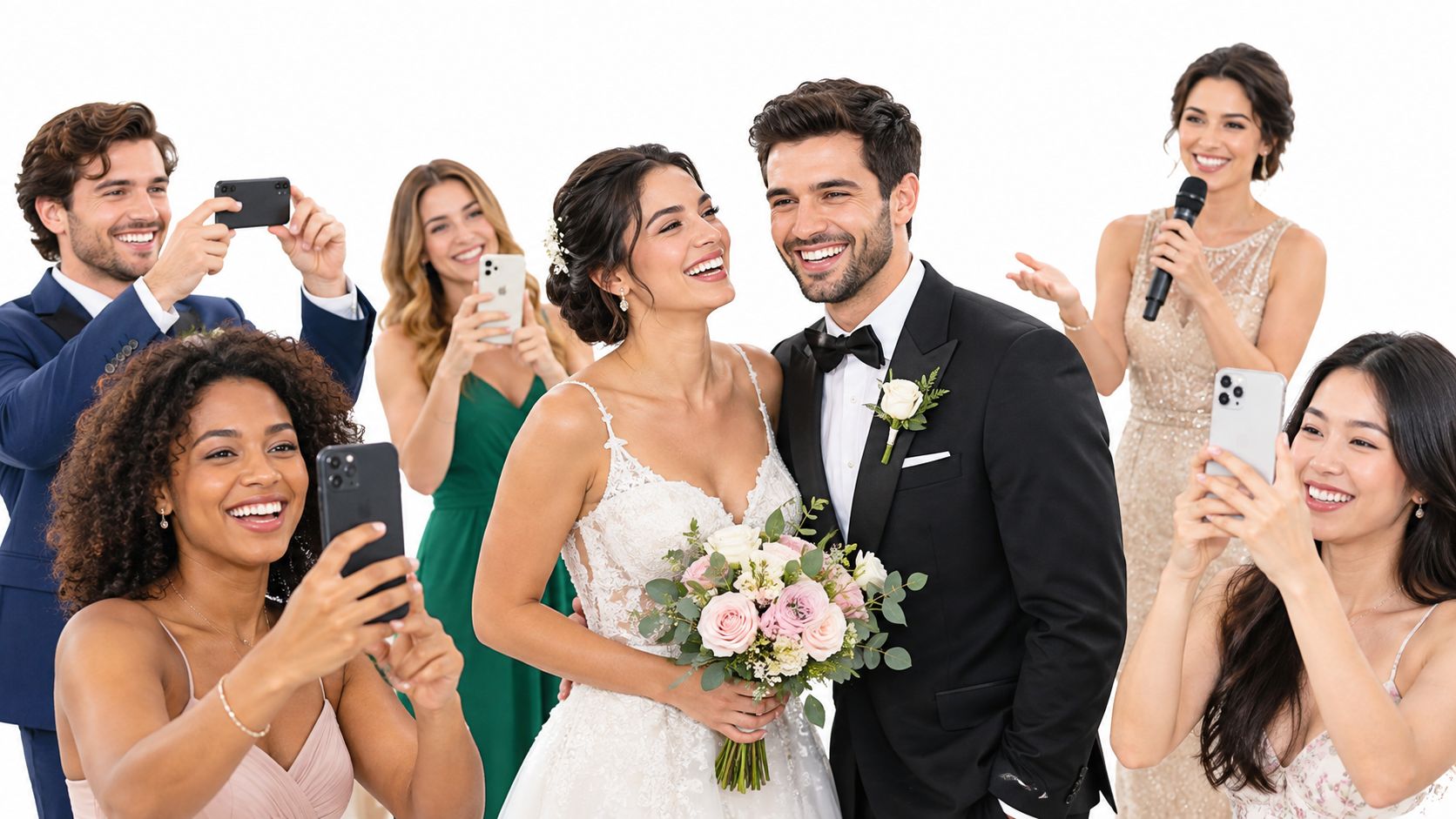
Design for the distracted guest
Don't rely on one sign. Use a visible welcome poster, table cards, and a screen or verbal reminder where appropriate. Keep the code away from glare, strong shadows, and glossy reflections. Venue lighting can make a perfectly generated QR code difficult to scan, so check it after the room changes from setup lighting to event lighting.
Give people a reason to contribute now. “Upload the photo you just took” is more actionable than “Share your memories.” If guests see new images appearing in the live gallery, that visible momentum encourages more uploads. The gallery becomes part of the event rather than a task assigned for later.
A practical live playbook looks like this:
- Seed the collection: Ask the host team and a few willing guests to upload early, so the gallery isn't empty when others open it.
- Use a human prompt: Have the MC, planner, team lead, or captain explain the scan and upload flow in one sentence.
- Reassure contributors: State whether the gallery is private, moderated, or visible to everyone with the link.
- Offer a fallback: Print the URL below the QR code and keep it available in event messages for guests whose cameras or connectivity fail.
- Celebrate the result: Show a rotating gallery screen or mention that fresh uploads are appearing, provided the event's privacy rules allow it.
Small operational detail, large effect: Put the QR code where guests stop, not where the organizer happens to have wall space.
For a more active display and participation loop, explore a live photo gallery workflow. Older guests may need a staff member to point to the browser button, but they shouldn't need to install unfamiliar software. Coworkers may scan during a break, then upload later from the same link. The system should accommodate both behaviors without creating separate instructions.
Curating Publishing and Sharing Your Final Gallery
The end of the event isn't the end of the gallery. It's the point where a stream of contributions becomes something people can revisit. Start by reviewing submissions for duplicates, accidental uploads, private moments, and images that don't fit the audience you intend to share.
Turn uploads into a finished collection
Keep the strongest variety, not only the technically perfect frames. A wedding gallery feels more complete when it includes the room, details, reactions, friends, family, and spontaneous moments alongside professional portraits. For a corporate offsite, balance polished team photographs with candid moments that help people remember the atmosphere.
A simple review sequence keeps the work manageable:
- Remove clear mistakes: Delete blank files, accidental screenshots, duplicates, and unrelated media.
- Check permission and privacy: Exclude anything that shouldn't be shown to the wider guest group or published publicly.
- Choose representative favorites: Include different people, activities, locations, and parts of the event.
- Publish the approved set: Use the same event destination when possible, so guests don't have to learn another link.
- Export the archive: Download the full collection in original quality, then store a separate working copy for edits and presentations.
A thank-you message is a useful final touch. Share the gallery link with a note that names what guests can find there, such as ceremony photos, candid moments, speeches, or the team recap. People are more likely to return when the message tells them what has been added and reminds them that their contribution helped build the collection.
Keep access intentional
Review privacy after the event rather than leaving every upload exposed indefinitely. A family may want a private gallery long term. A company may publish a selected set internally while keeping raw submissions restricted. A festival organizer may approve public highlights but retain the complete archive separately.
EventUploader can provide a branded upload page, one link or printable QR code, live upload management, original-quality export, and a shareable gallery published through the same link guests used for uploading. Whatever platform you choose, confirm that it supports the handoff you need: from contribution, to review, to approved sharing, to archive.
A finished gallery should feel like a thank-you, not a storage bin. Send it while the event is still fresh, keep the access instructions simple, and preserve the original files before making edited versions for social media or presentations.
EventUploader gives you a branded upload page, a no-app link and printable QR code, live collection controls, original-quality exports, and a shareable gallery for the approved memories. Visit EventUploader before your next wedding, celebration, offsite, or festival, and set up the collection while the event plan is still fresh.